Creatives Library
Browse, create, and manage your designs and video creatives
The Creatives page is your central library for all visual content. Every creative you build lives here and can be attached to posts or used across your workspace.
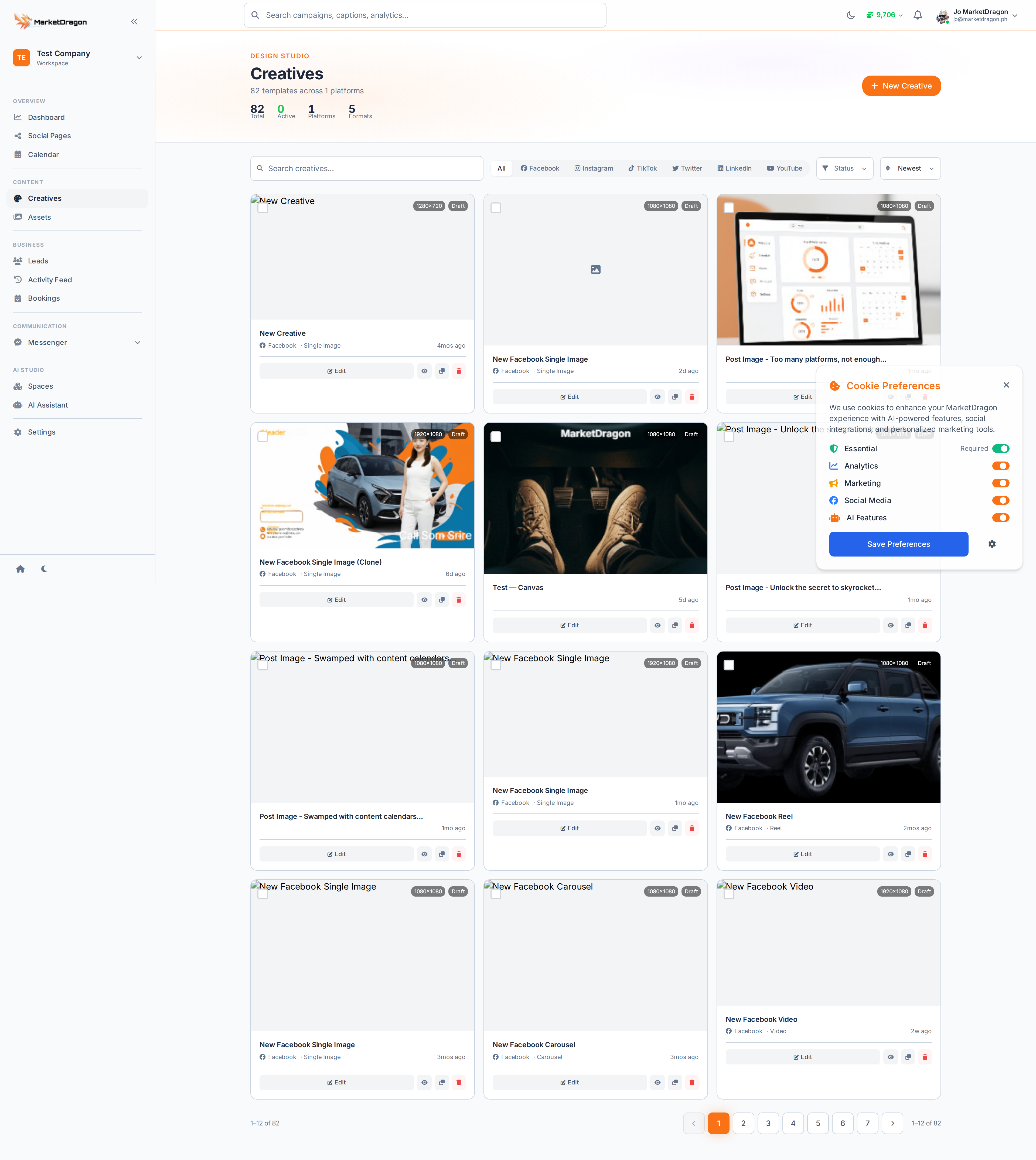
Browsing Creatives
- Click Creatives in the sidebar
- The library displays all creatives as cards with thumbnails
- Use the search bar to find creatives by name
- Filter by type to narrow results
Creating a New Creative
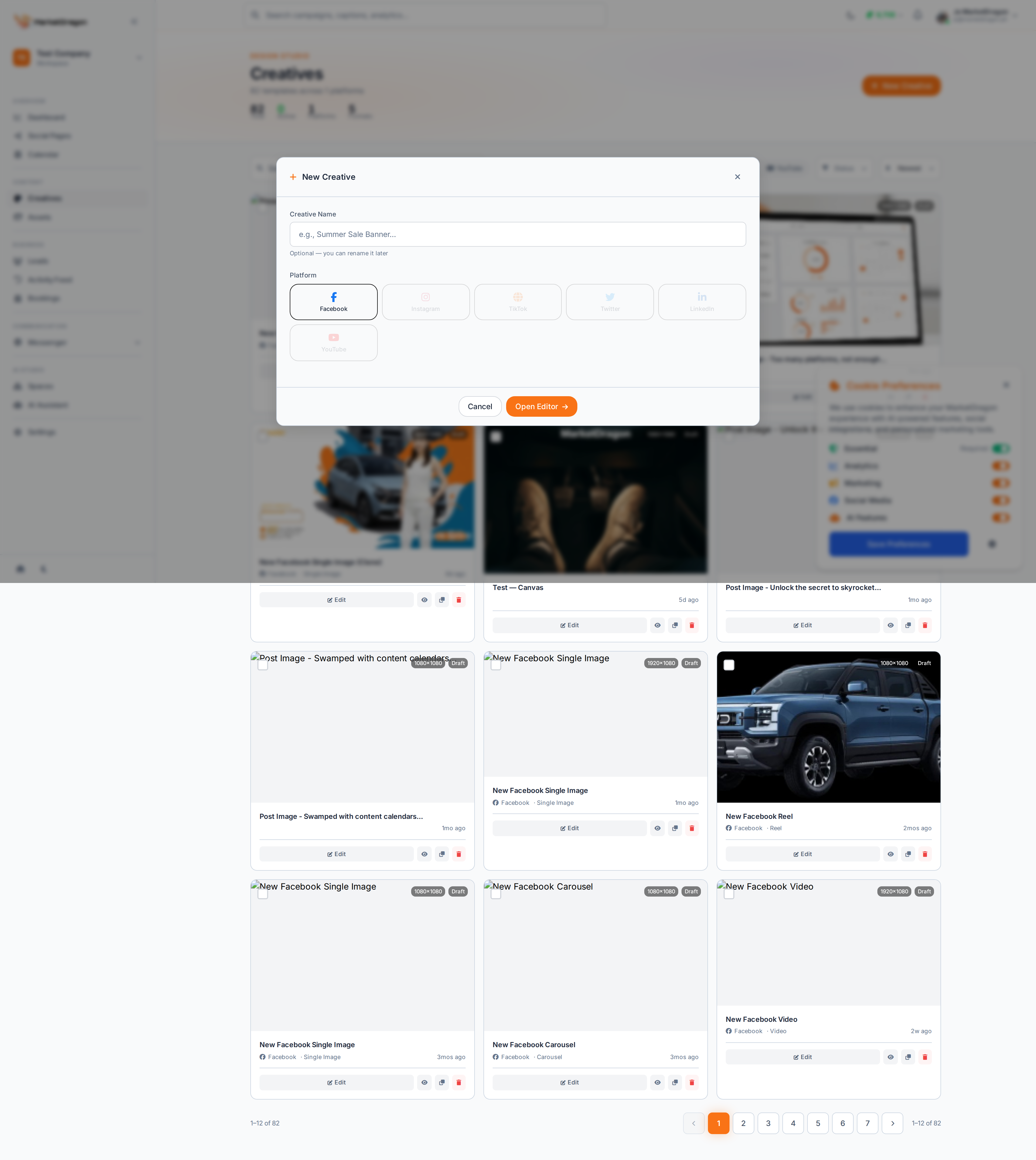
- Click the Create Creative button in the top-right corner
- A modal will slide in presenting the available creative types:
- Design -- Opens the Canvas Editor for visual design (posters, banners, social graphics)
- Video -- Opens the Timeline Editor for video editing (reels, promos, ads)
- Select a type and click Continue
- You will be taken to the appropriate editor
The Canvas Editor (Designs)
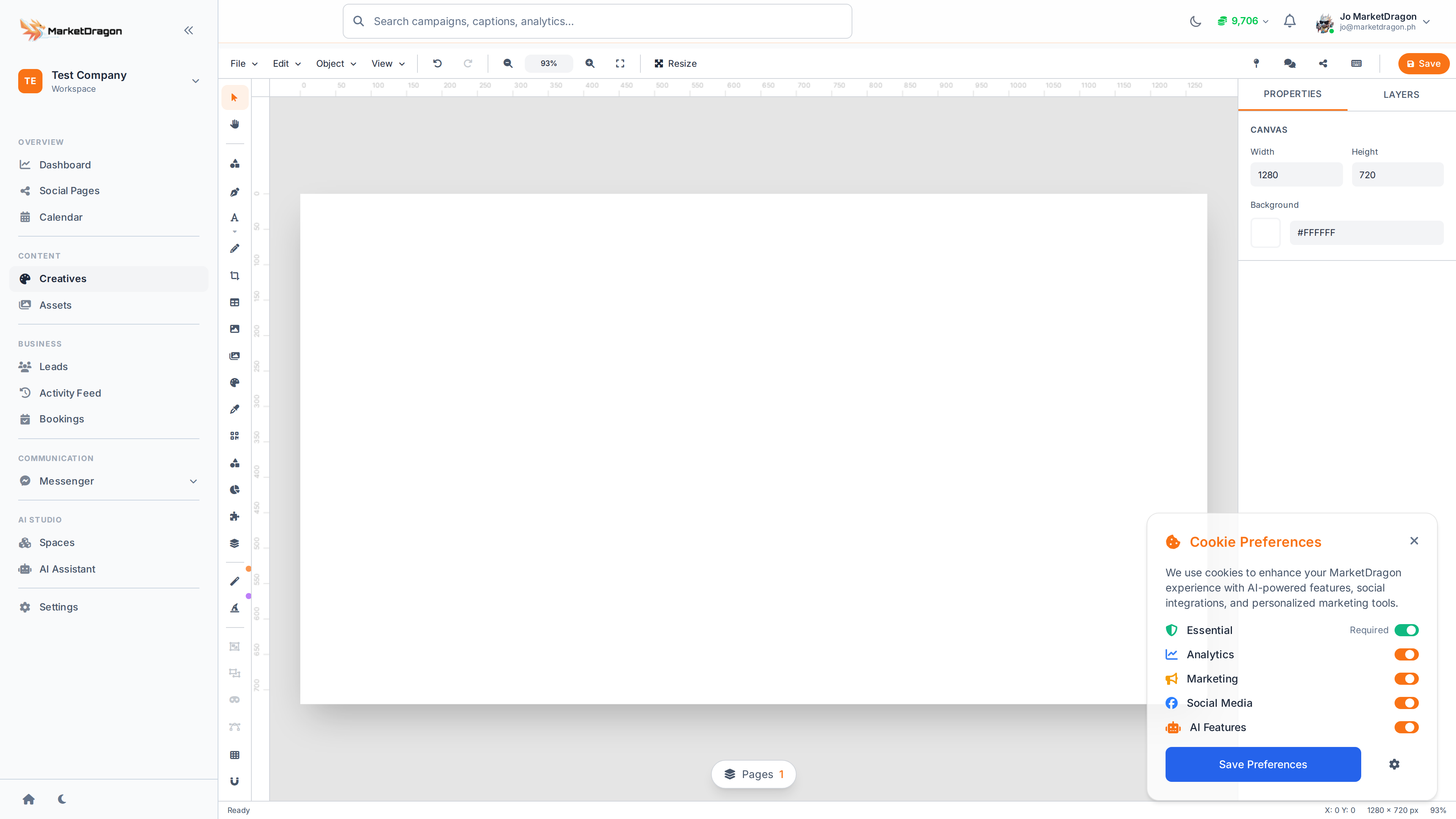
When you create a design creative, you'll enter the Canvas Editor -- a full visual design tool where you can:
- Drag and drop elements, text, shapes, and images
- Use brand colors and logos from your company settings
- Apply AI-powered design suggestions
- Export as image or attach directly to social posts
The Timeline Editor (Videos)
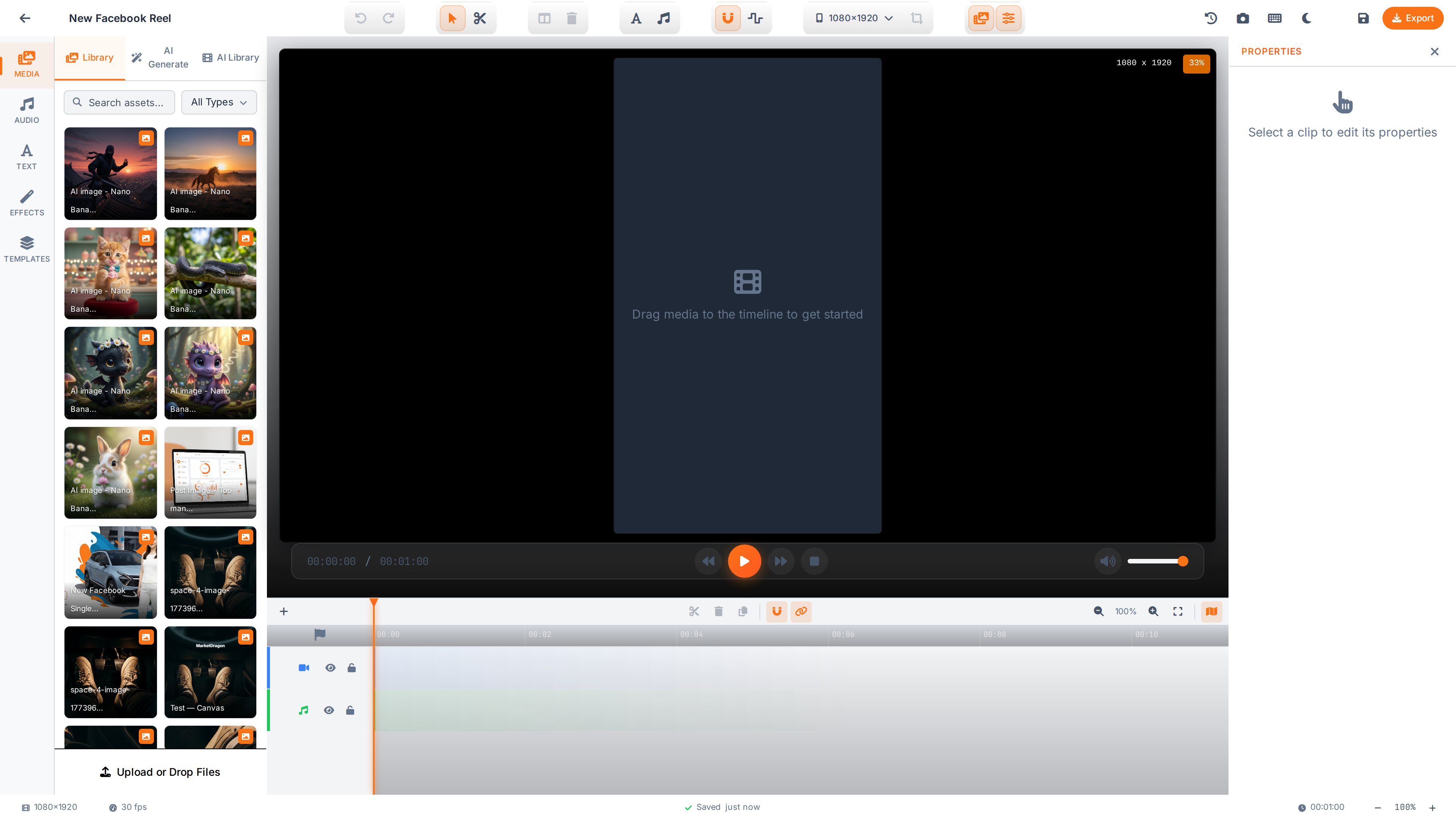
When you create a video creative, you'll enter the Timeline Editor -- a multi-track video editing workspace:
- Add video clips, audio tracks, and text overlays
- Trim, split, and arrange clips on a timeline
- Apply effects, transitions, and filters
- Export in multiple formats and resolutions
Managing Creatives
Each creative card has a context menu (three dots) with options:
- Edit -- Open the creative in its editor
- Duplicate -- Create a copy
- Delete -- Remove the creative permanently
Using Creatives in Posts
When creating a social media post, you can attach any creative from this library instead of uploading a new file. This keeps your branding consistent across all your content.
Tip: Name your creatives descriptively (e.g., "March Promo Banner - Facebook") so they are easy to find later.
Next Steps
Signal pending
Video walkthrough not recorded yet
Switch back to Read for the full written guide — it is complete.