Beginner
5 min read
Assets Library
Upload, organize, and manage your media files in the Assets library
The Assets library stores all your uploaded media files -- images, videos, and audio. These files can be used in creatives, posts, and anywhere else that accepts media.
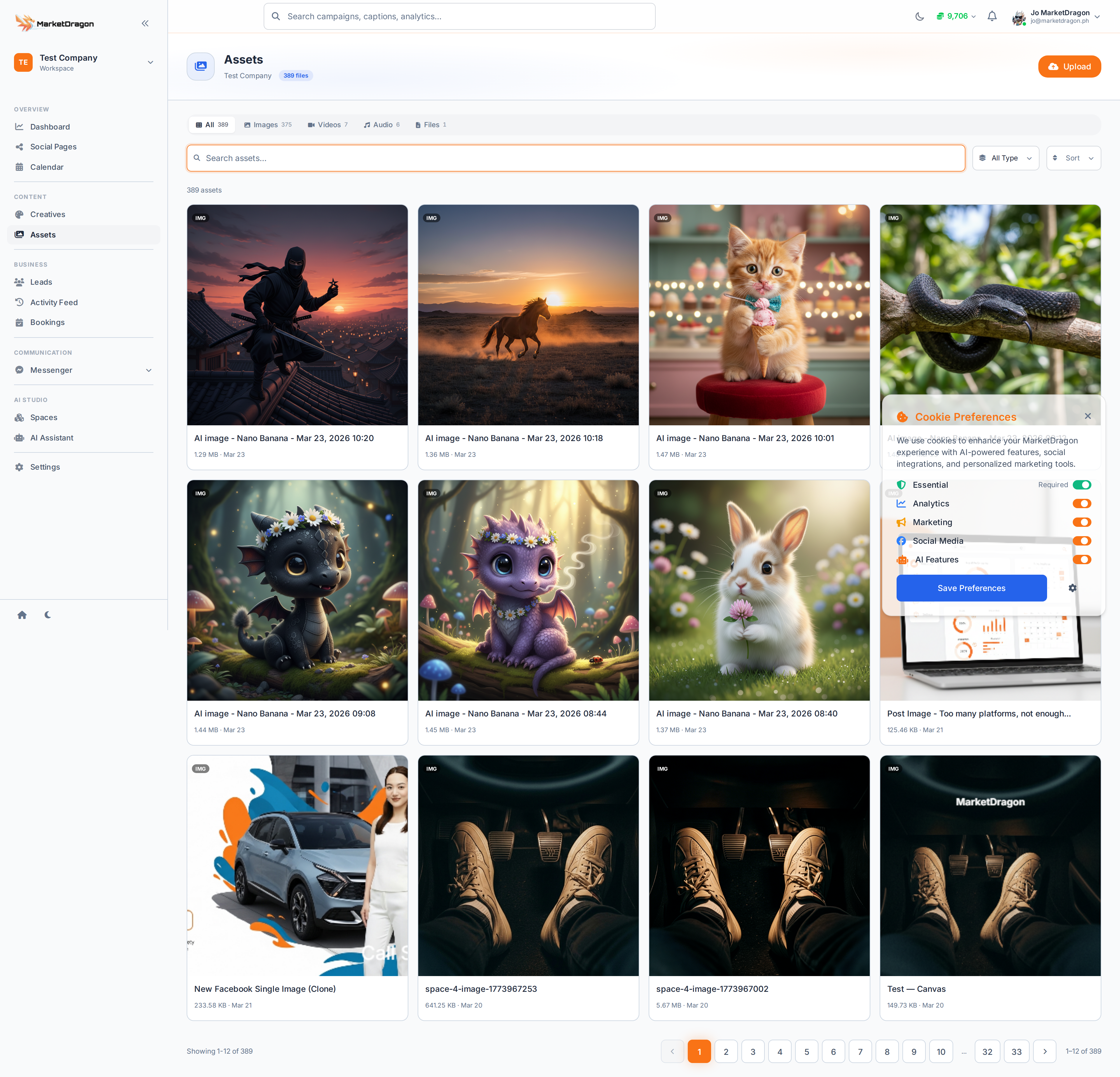
Viewing Assets
- Click Assets in the sidebar
- Assets are displayed in a grid with thumbnails
- Use search and filters to find specific files
- Click an asset to preview it and see details (file size, dimensions, upload date)
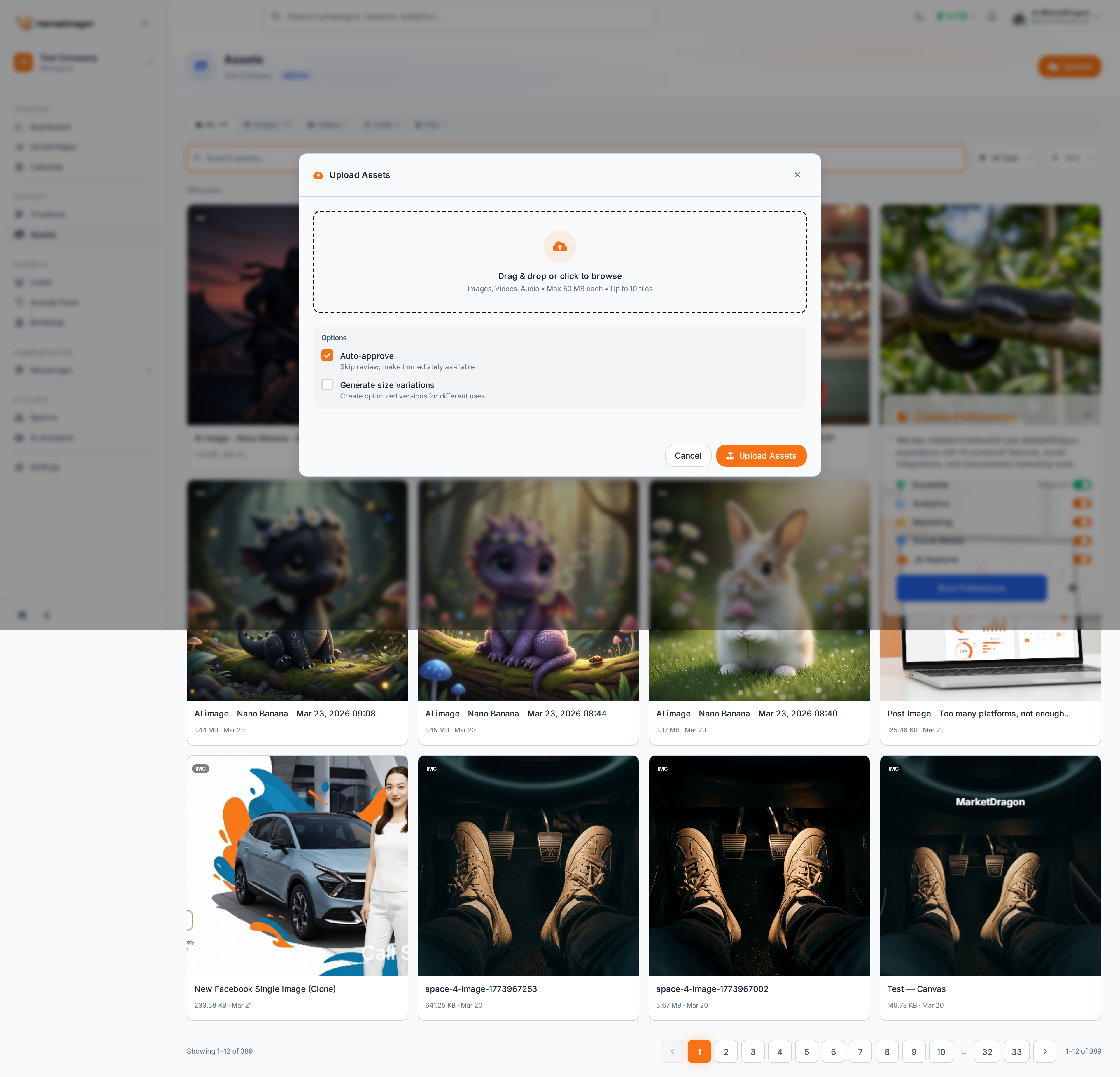
Uploading Assets
- Click the Upload button
- A modal will slide in with a drag-and-drop zone
- Drag files onto the zone or click Browse to select files from your computer
- Supported formats include JPG, PNG, GIF, MP4, MOV, MP3, and WAV
- The upload progress bar shows each file's status
- Once complete, the modal closes and your new assets appear in the library
Managing Assets
- Preview -- Click any asset to open a full preview
- Download -- Download the original file
- Delete -- Remove an asset you no longer need
Warning: Deleting an asset that is used in a creative or scheduled post may cause those items to display incorrectly.
Using Assets Elsewhere
Assets are available anywhere you attach media in MarketDragon:
- When creating a post, browse your Assets library to attach media
- In the Timeline Editor, import assets as video or audio tracks
- In creatives, insert images from your library
Tip: Upload your brand logos, product photos, and common background images to Assets early so they are always available when you create content.
Next Steps
Signal pending
Video walkthrough not recorded yet
Switch back to Read for the full written guide — it is complete.