Social Pages
Manage all your connected social media pages in one place
The Social Pages section is your hub for every connected social media account. Here you can see connection status, jump into page-level features, and manage your accounts.
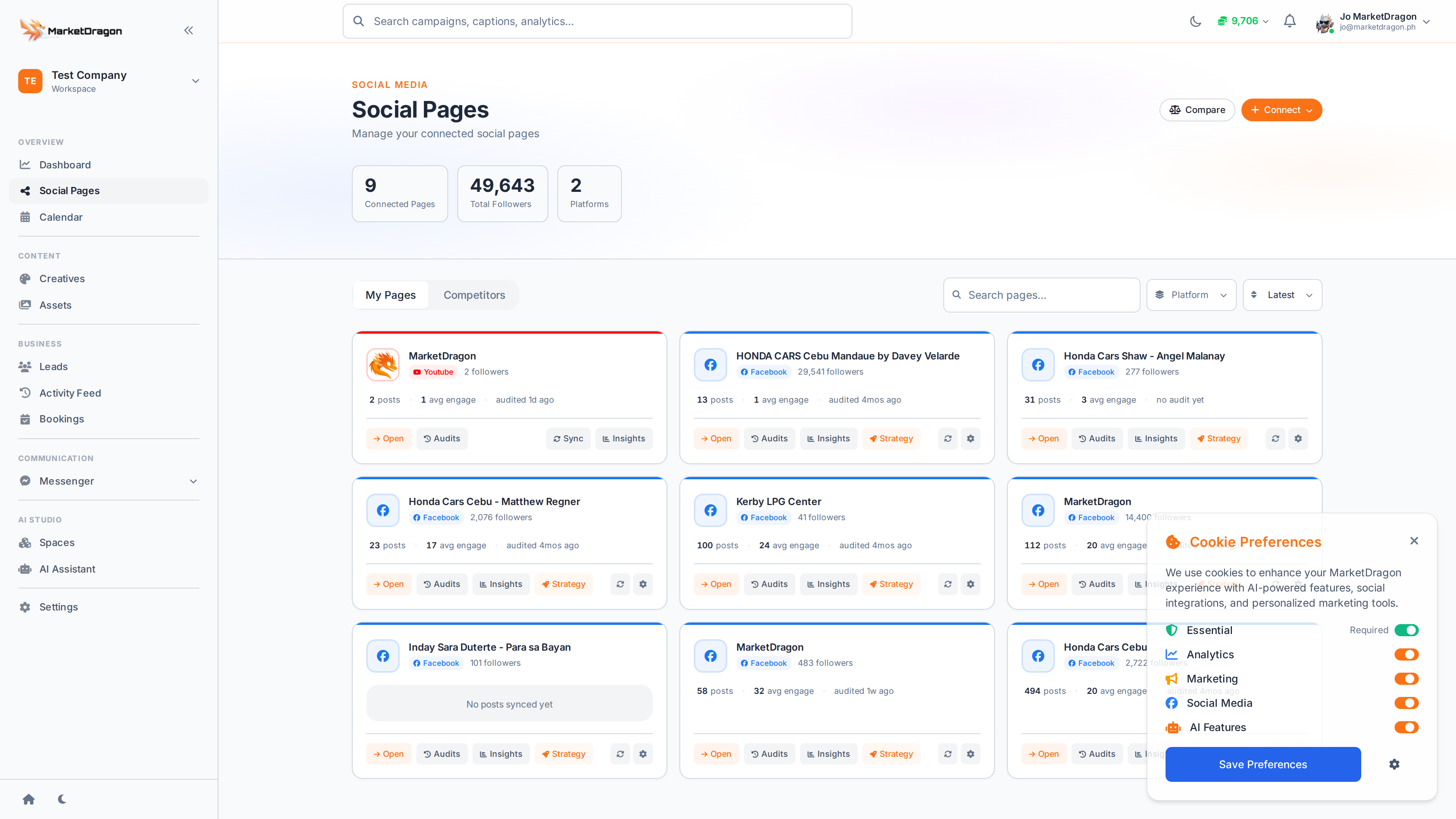
Viewing Your Pages
- Click Social Pages in the sidebar
- Each connected page is displayed as a card showing:
- Platform icon and page name
- Connection status (active or needs reconnection)
- Follower / subscriber count
Page-Level Features
Clicking on a connected page opens a dedicated context with its own sub-navigation:
| Section | What It Does |
|---|---|
| Page Overview | Summary stats and recent activity for that page |
| Posts | All posts published or scheduled to that page |
| Page Messenger | Conversations specific to that page |
| Flows | Automation flows tied to the page |
| Page Leads | Leads captured from that page |
| Page Bookings | Appointments booked through that page |
| Audits | Content and performance audits |
| Insights | Engagement, reach, and follower analytics |
| Viral Strategy | AI-generated strategy recommendations |
| Competitors | Track competitor pages |
| Page Settings | Page-specific configuration |
| Automations | Page-level automation rules |
Reconnecting a Page
If a page shows a warning icon, the connection token may have expired:
- Click the page card
- Click Reconnect
- Re-authorize on the platform
- The page returns to active status
Removing a Page
- Click the page you want to remove
- Go to Page Settings
- Scroll to the bottom and click Disconnect Page
- Confirm the disconnection
Warning: Disconnecting a page will stop all scheduled posts and automations for that page. Historical data is preserved.
Next Steps
Video tutorial coming soon
A video walkthrough for this tutorial is being produced. Switch to Read mode for the full written guide.
