Social Calendar
Plan and visualize your content schedule across all connected pages
The Calendar gives you a visual overview of every post -- scheduled, published, or in draft -- across all your connected pages.
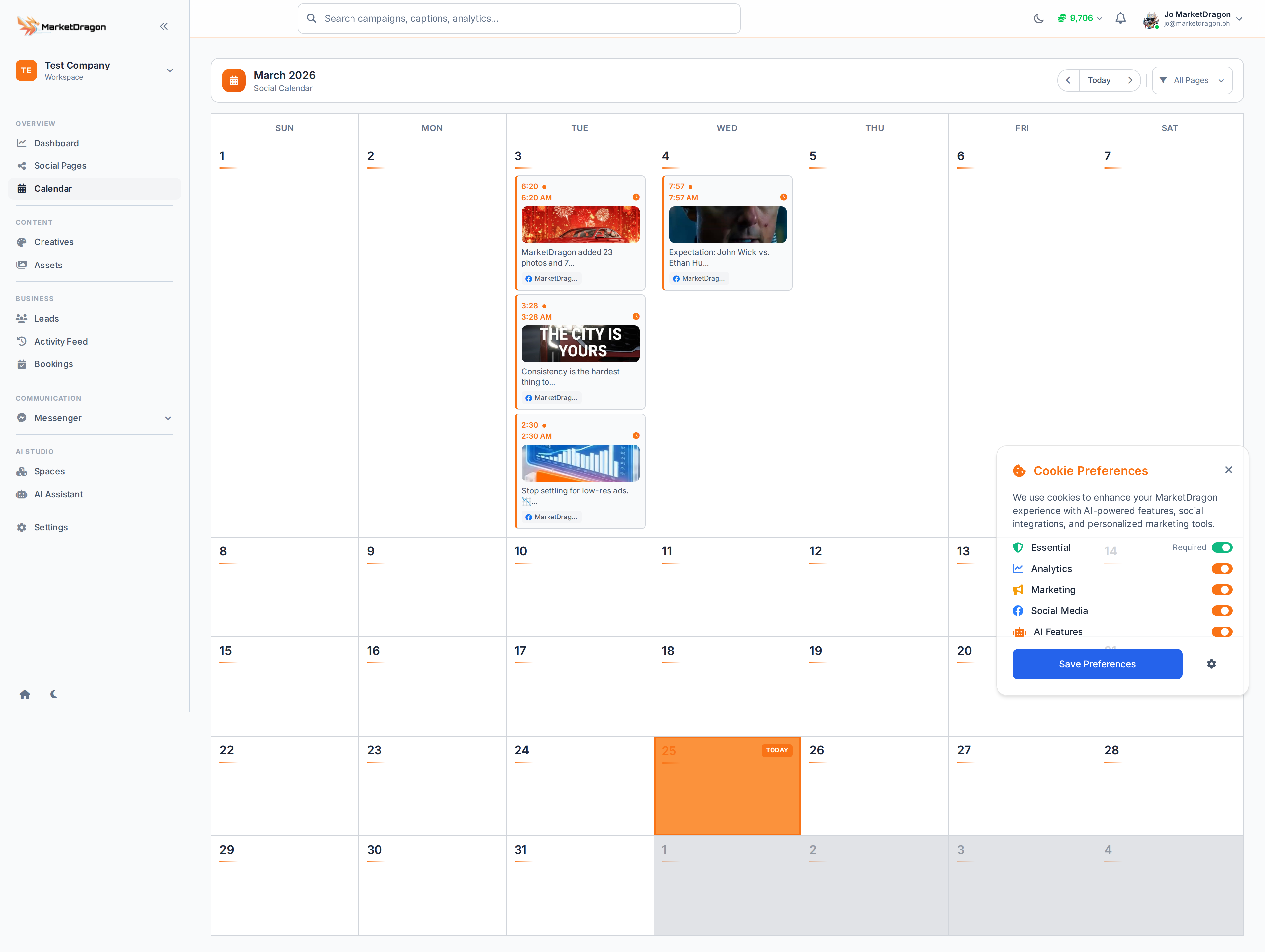
Navigating the Calendar
- Click Calendar in the sidebar
- Use the arrow buttons to move between months
- Each day cell shows colored indicators representing posts
- Click on a post to view its details
Calendar Views
The Calendar supports multiple views:
- Month -- See the full month at a glance
- Week -- Focus on a seven-day window with time slots
Switch views using the toggle buttons in the top-right corner of the calendar.
Scheduling a Post from the Calendar
- Click on an empty date cell
- This opens the post creation flow with that date pre-selected
- Choose the target page, write your content, attach media
- Set the exact time and click Schedule
Post Status Colors
Posts on the calendar are color-coded:
| Status | Description |
|---|---|
| Draft | Saved but not scheduled |
| Scheduled | Set to publish at a future time |
| Published | Successfully posted to the platform |
| Failed | Post could not be published |
Filtering by Page
Use the page filter dropdown above the calendar to show posts for a specific page or all pages at once. This is helpful when you manage many accounts.
Rescheduling
To move a post to a different date:
- Click the post on the calendar
- Edit the scheduled date and time
- Save the changes
Tip: Use the week view to space out your content evenly and avoid posting too many times in one day.
Next Steps
Video tutorial coming soon
A video walkthrough for this tutorial is being produced. Switch to Read mode for the full written guide.
