Conversations
View and respond to messages from your connected social pages
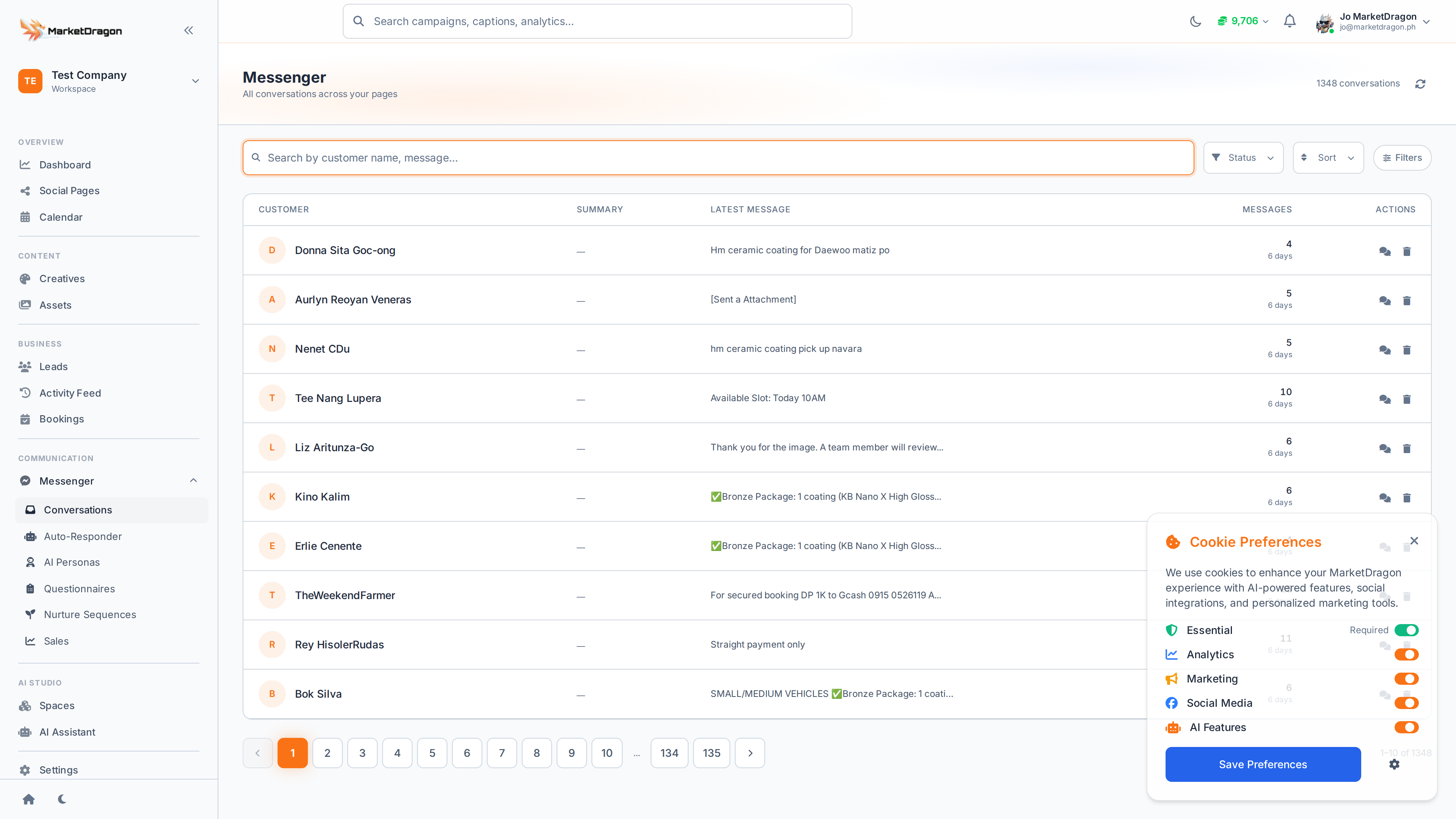
The Conversations inbox brings all your Facebook Messenger messages into MarketDragon so you can respond without leaving the platform.
Accessing Conversations
Click Conversations in the sidebar. The inbox loads with all conversations from your connected Facebook pages.
Inbox Layout
The inbox is split into two panels:
- Left panel -- Conversation list showing contact names, last message preview, and unread indicators
- Right panel -- The selected conversation thread with full message history
Reading and Replying
- Click a conversation in the left panel to open it
- The full message history appears in the right panel
- Type your reply in the text box at the bottom
- Press Enter or click Send
Conversation Details
Above the message thread you can see:
- Contact name and profile picture
- Connected page this conversation belongs to
- Link to the lead record (click to open in Leads)
Filtering Conversations
Use the filters at the top of the conversation list:
- Unread -- Show only conversations with unread messages
- By Page -- Filter to a specific connected page
- Search -- Find conversations by contact name
Page-Level Messenger
You can also view conversations for a specific page by navigating to the page in Social Pages and clicking Page Messenger. This shows only conversations from that page.
Tip: Respond to messages quickly. Fast response times improve customer satisfaction and boost your page ranking on Facebook.
Next Steps
Video tutorial coming soon
A video walkthrough for this tutorial is being produced. Switch to Read mode for the full written guide.
