Billing and Credits
Manage your subscription plan, payment method, and AI credits
The Billing page lets you manage your subscription, update your payment method, and track your AI credit usage.
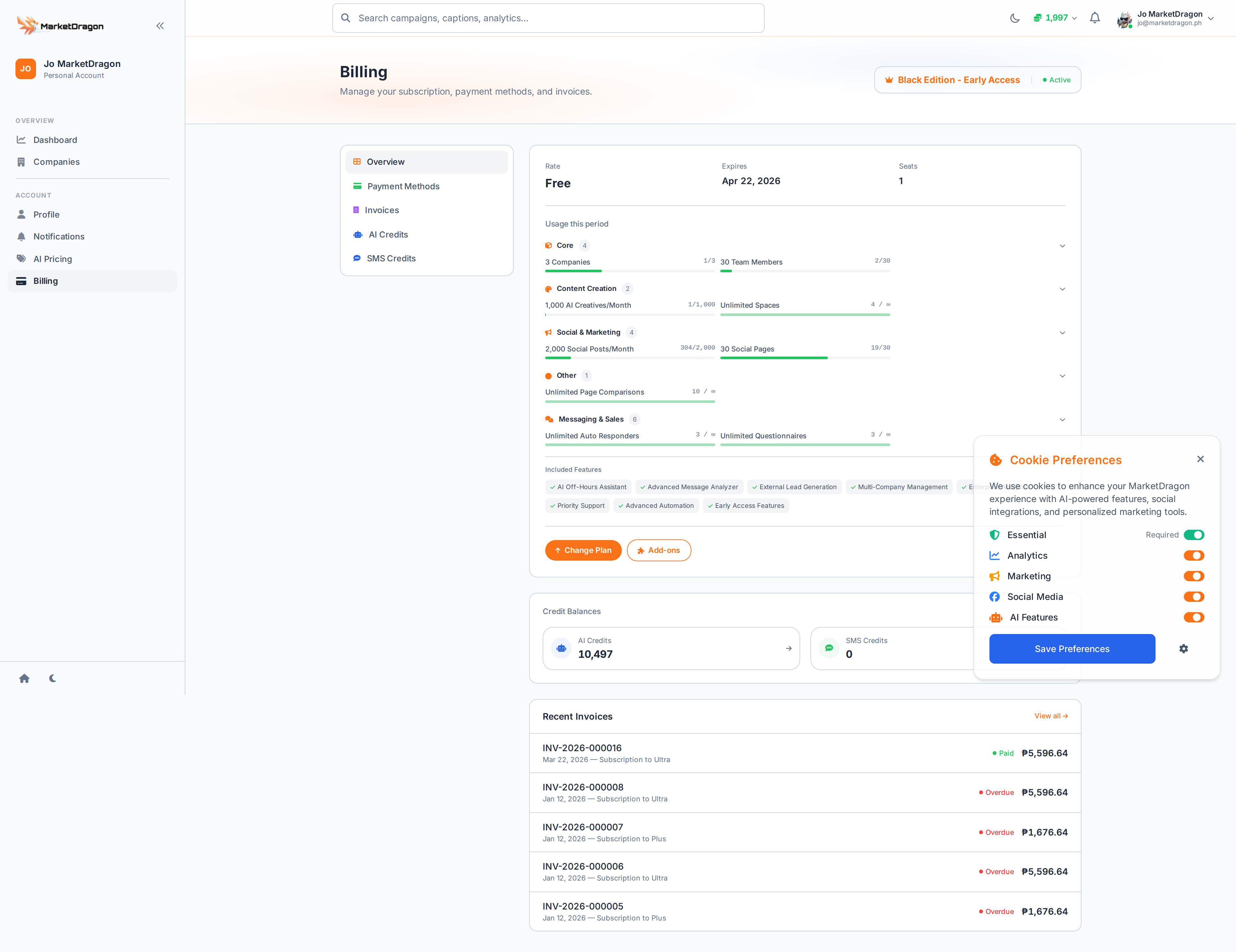
Accessing Billing
Click your avatar in the top-right corner and select Billing, or navigate directly to the Billing page from your account menu.
Subscription Plan
The Billing page shows your current plan:
- Plan name and tier
- Billing cycle (monthly or annual)
- Next billing date
- Included features and limits
Changing Your Plan
- Click Change Plan
- Review the available plans
- Select the plan that fits your needs
- Confirm the change
Plan upgrades take effect immediately. Downgrades apply at the end of the current billing period.
Payment Method
Updating Your Card
- Click Update Payment Method
- Enter your new card details
- Click Save
Billing History
View your past invoices and download receipts from the billing history section.
AI Credits
AI features (content generation in Spaces, AI Assistant, AI Personas) consume credits. The Billing page shows:
- Credits remaining this billing period
- Credits used and breakdown by feature
- Reset date when credits refresh
Running Low on Credits
If you are approaching your credit limit:
- Upgrade to a higher plan for more credits
- Purchase additional credit packs (if available)
- Wait for the next billing cycle to reset
Tip: Monitor your credit usage weekly. Heavy use of AI image and video generation in Spaces consumes credits faster than text-based features.
Next Steps
Video tutorial coming soon
A video walkthrough for this tutorial is being produced. Switch to Read mode for the full written guide.
