Spaces
Use the node-based AI workspace to generate images, videos, music, and speech
Spaces is MarketDragon's node-based AI workspace. You build content creation pipelines by connecting different node types on a visual canvas, then generate images, videos, music, and speech with AI.
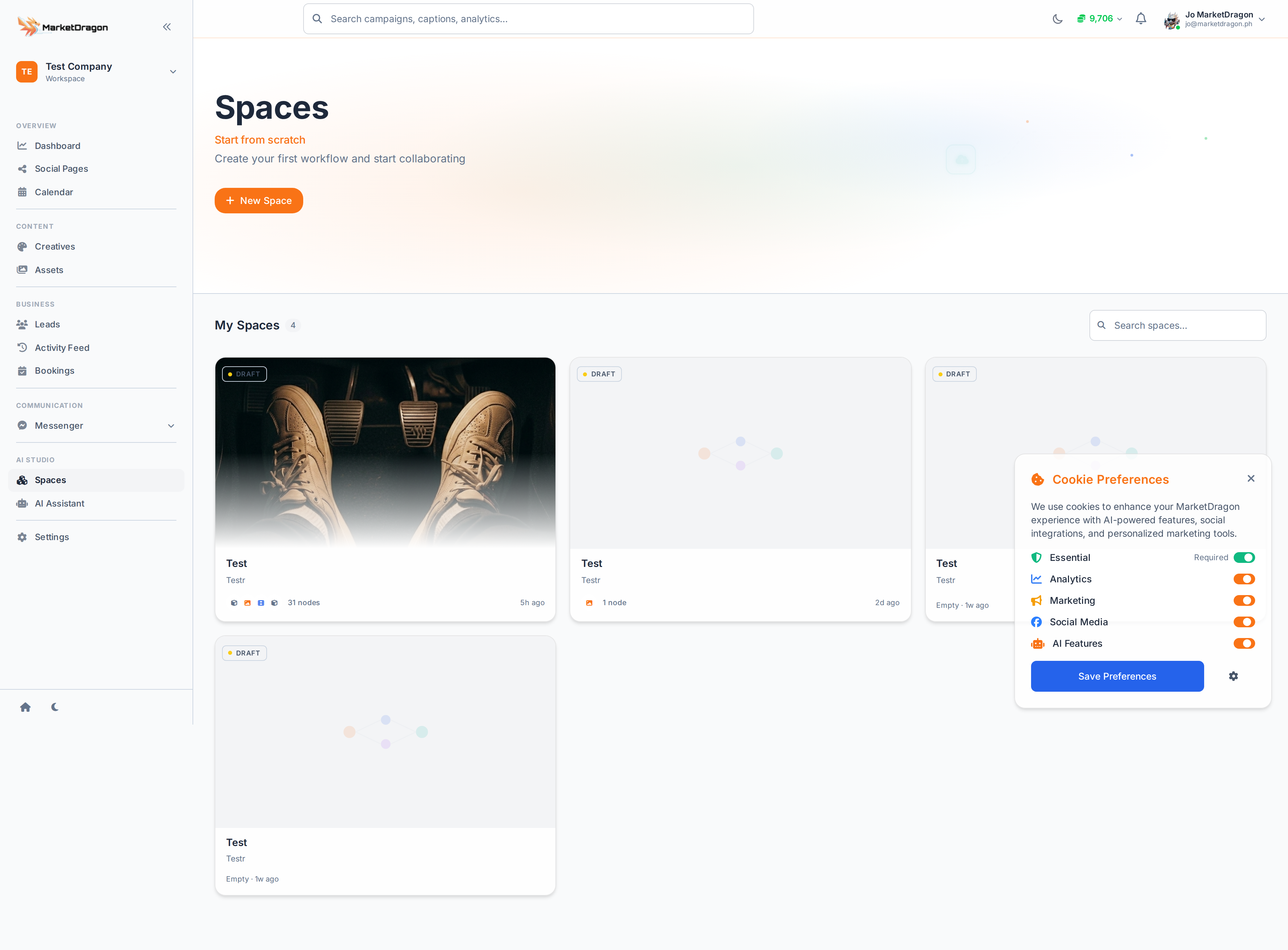
Accessing Spaces
Click Spaces in the sidebar to see your list of existing spaces.
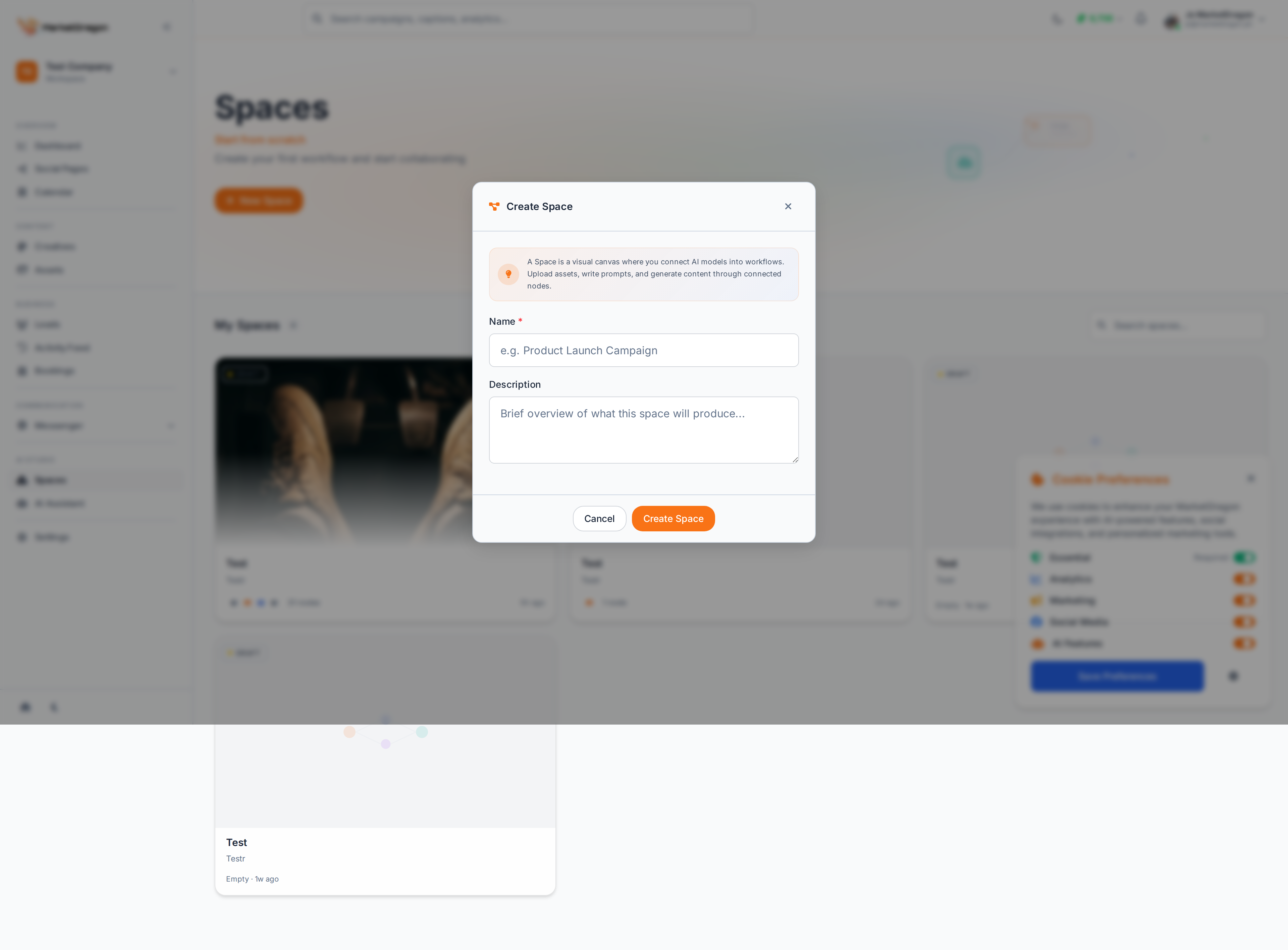
Creating a Space
- Click the Create Space button
- A modal will slide in asking for a name and optional description
- Enter a name (e.g., "Product Launch Video") and click Create
- The Space canvas opens
Node Types
Each node represents a different type of content or asset:
| Node | Color | Purpose |
|---|---|---|
| Image | Orange | Generate or import images |
| Video | Blue | Generate AI video from images |
| Music | Purple | Generate background music and SFX |
| Speech | Teal | Generate voiceover and dialogue (TTS) |
| Character | -- | Define a character for consistency |
| Scene | -- | Define a scene description |
| Shot | -- | Define camera angle and framing |
| Merger | -- | Combine video with audio tracks |
Adding Nodes
Use keyboard shortcuts or the toolbar to add nodes:
- Press I for Image
- Press V for Video
- Press M for Music
- Press T for Speech
- Or click the node type in the toolbar
Connecting Nodes
Drag from a node's output port to another node's input port to create a connection. Valid connections include:
- Character / Scene / Shot --> Image (provides context for image generation)
- Image --> Video (generates video from the image)
- Music / Speech --> Merger (adds audio to a composition)
- Image / Video --> Merger (combines visual and audio tracks)
Generating Content
- Configure a node by clicking it and filling in its settings (prompt, style, duration)
- Click Generate on the node
- The AI processes your request and the result appears in the node preview
- Connect the output to the next node in your pipeline
Exporting to Timeline Editor
When your composition is ready:
- Select the Merger node or final output node
- Click Export to Timeline
- The composition is sent to the Timeline Editor with tracks pre-populated
Undo and Redo
- Ctrl+Z -- Undo the last action
- Ctrl+Shift+Z -- Redo
- Del -- Delete the selected node
Next Steps
Signal pending
Video walkthrough not recorded yet
Switch back to Read for the full written guide — it is complete.