Sales Pipeline
Track deals, manage your sales funnel, and monitor revenue
The Sales page helps you track deals from initial contact through to close. It gives you a clear view of your revenue pipeline and where each opportunity stands.
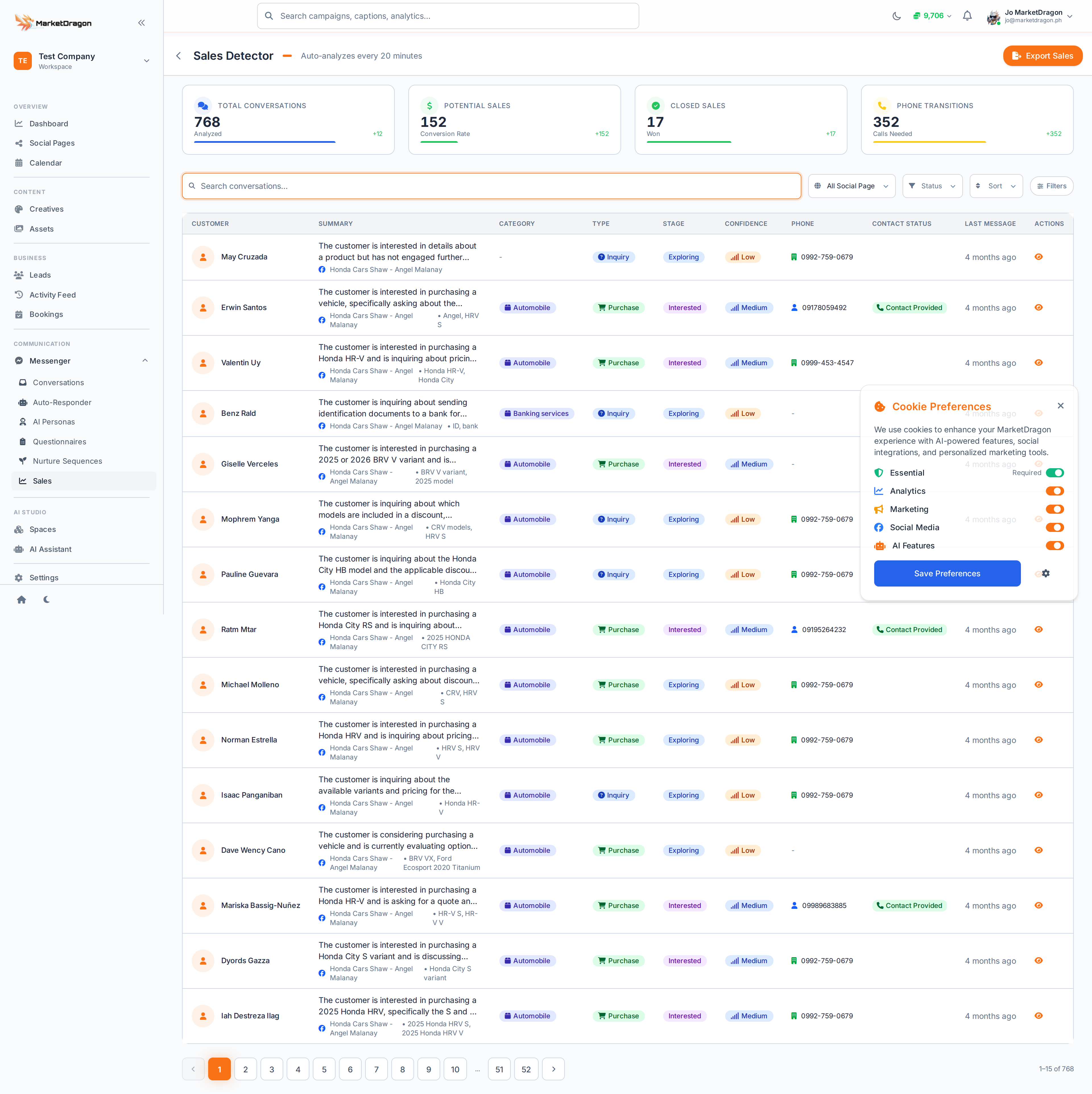
Accessing Sales
Click Sales in the sidebar to open the pipeline.
Pipeline View
Deals are displayed in columns representing pipeline stages:
- New -- Fresh opportunities
- In Progress -- Active conversations or negotiations
- Proposal Sent -- Waiting on client response
- Won -- Deal closed successfully
- Lost -- Deal did not convert
Each deal card shows the lead name, deal value, and how long it has been in the current stage.
Creating a Deal
- Click Add Deal at the top of the pipeline
- Fill in the deal details:
- Lead -- Link the deal to an existing lead
- Deal Name -- A short label for the opportunity
- Value -- Expected revenue amount
- Stage -- Starting pipeline stage
- Click Save
Moving Deals
Drag a deal card from one column to another to update its stage. The change is saved immediately and recorded in the Activity Feed.
Deal Details
Click a deal card to open its detail view with:
- Deal value and stage history
- Linked lead information
- Notes and activity timeline
- Expected close date
Tracking Revenue
The top of the Sales page displays summary metrics:
- Total pipeline value -- Sum of all active deals
- Won this month -- Revenue closed in the current month
- Conversion rate -- Percentage of deals that reach "Won"
Next Steps
Video tutorial coming soon
A video walkthrough for this tutorial is being produced. Switch to Read mode for the full written guide.
