Managing Leads
Create, view, and organize your leads in the built-in CRM
The Leads section is MarketDragon's built-in CRM. Here you track every person who has shown interest in your business -- whether they came from social media, a booking, or were added manually.
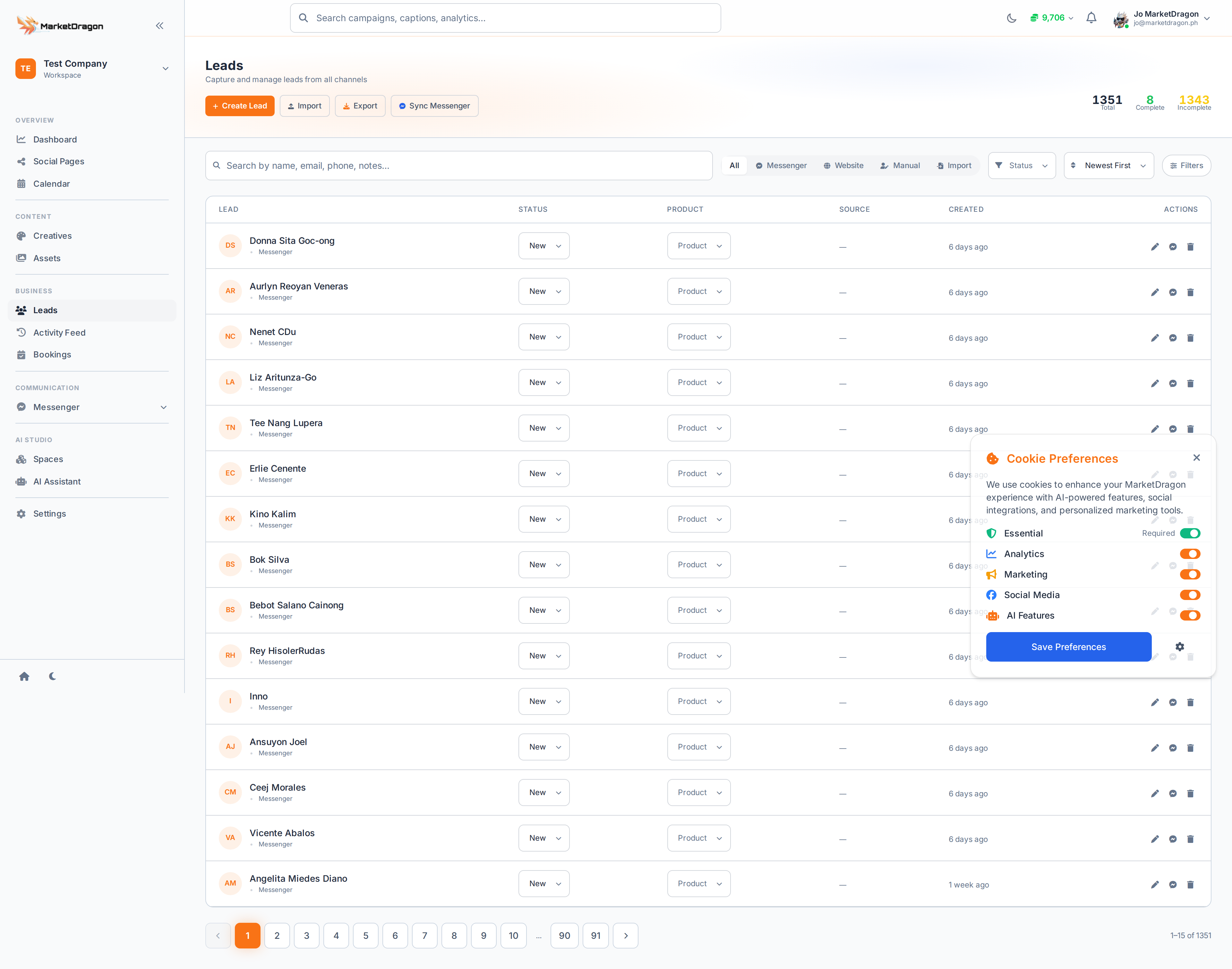
Viewing Leads
- Click Leads in the sidebar
- The list displays all leads with their name, email, status, and source
- Use the search bar to find a specific lead
- Apply filters to narrow by status, source, or date range
Adding a Lead Manually
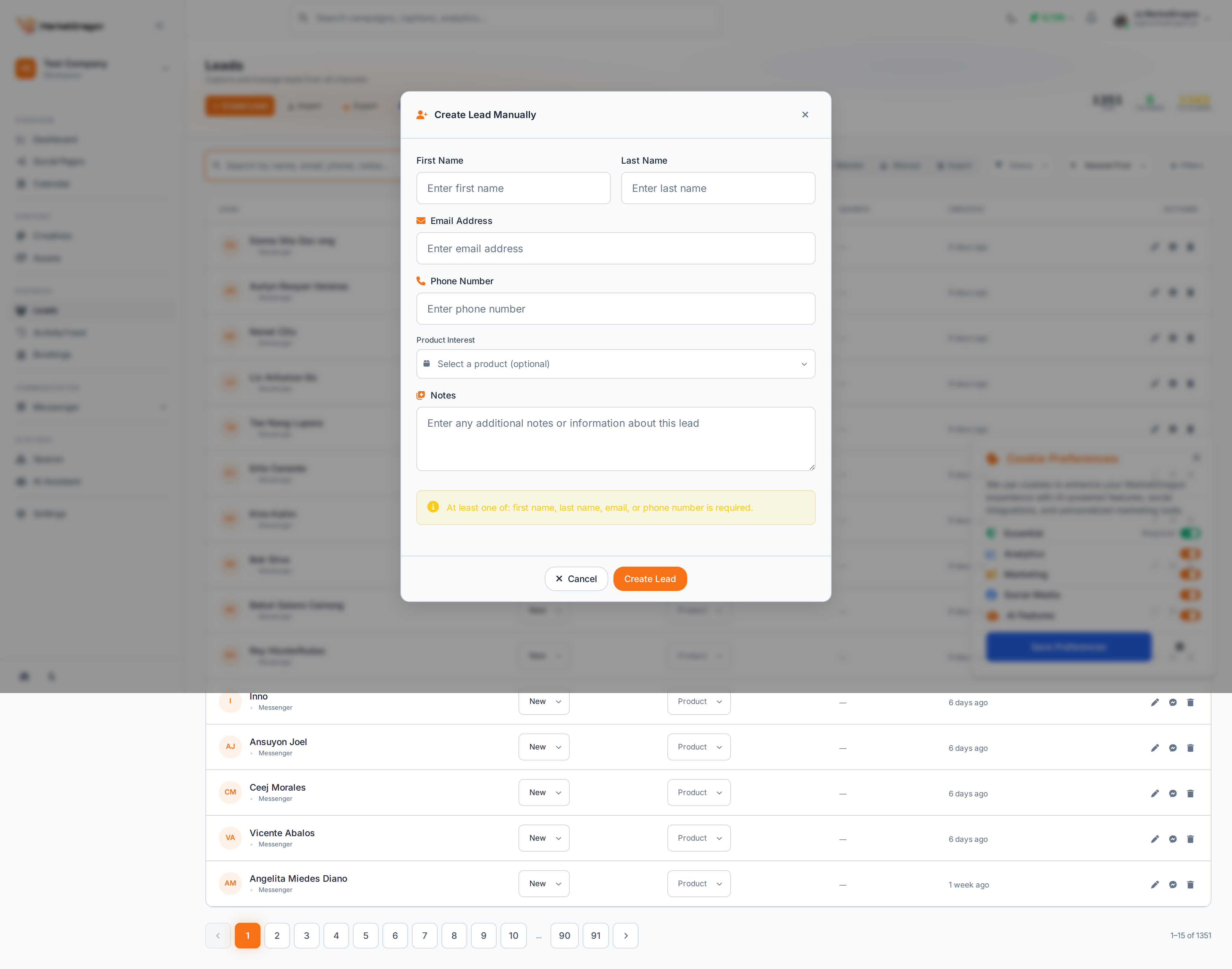
- Click the Add Lead button at the top of the page
- A modal will slide in with the lead creation form
- Fill in the details:
- Name -- Full name of the lead
- Email -- Contact email address
- Phone -- Phone number (optional)
- Source -- Where the lead came from
- Status -- Current status (new, contacted, qualified, etc.)
- Click Save
- The modal closes and your new lead appears in the list
Editing a Lead
- Click on a lead in the list
- A modal will slide in showing the lead's details
- Update any fields you need to change
- Click Save to apply changes
Lead Statuses
Use statuses to track where each lead is in your pipeline:
- New -- Just captured, not yet contacted
- Contacted -- You have reached out
- Qualified -- Confirmed interest and fit
- Converted -- Became a customer
- Lost -- Did not convert
Automatic Lead Capture
Leads are also created automatically when someone:
- Sends a message through your connected Facebook page
- Books an appointment through your booking page
- Completes a questionnaire
Next Steps
Video tutorial coming soon
A video walkthrough for this tutorial is being produced. Switch to Read mode for the full written guide.
