Connecting Social Pages
Link your Facebook, Instagram, YouTube, and TikTok accounts to MarketDragon
Before you can publish content or read messages, you need to connect at least one social media page. MarketDragon supports Facebook, Instagram, YouTube, and TikTok.
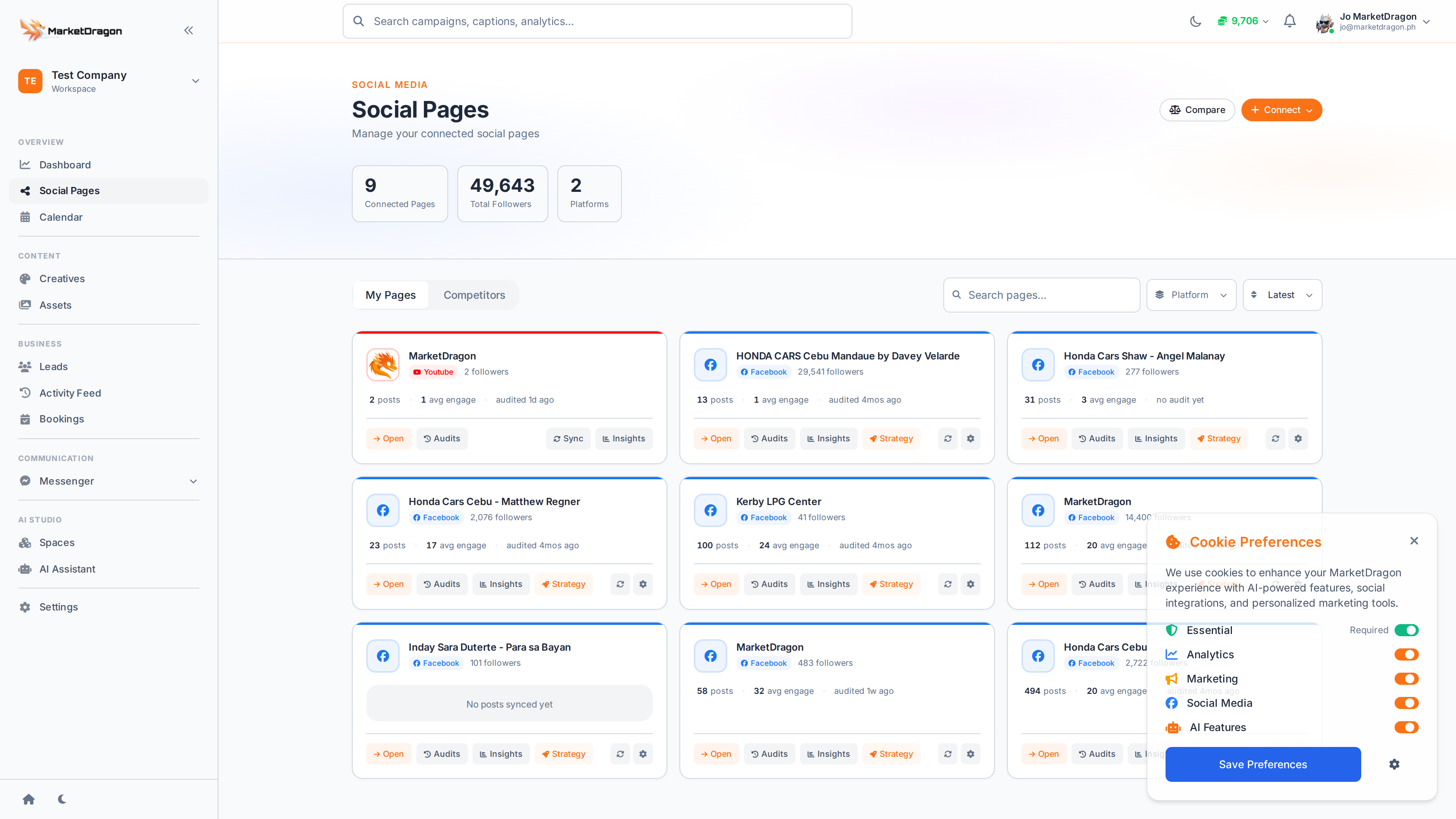
Supported Platforms
| Platform | What You Get |
|---|---|
| Post publishing, Messenger, leads, insights | |
| Post publishing, insights | |
| YouTube | Video publishing, analytics |
| TikTok | Video publishing |
How to Connect a Page
- Navigate to Social Pages in the sidebar
- Click the Connect Page button for the platform you want
- A popup will open asking you to log in to that platform
- Grant the requested permissions -- MarketDragon needs these to publish and read data on your behalf
- Select which page or channel to connect
- Click Confirm -- you will be redirected back to MarketDragon
After Connecting
Once a page is connected it appears in your Social Pages list. From here you can:
- Click the page name to open its Page Overview with posts, insights, and settings
- Use the Calendar to schedule content for that page
- View incoming messages in Conversations
Managing Connections
- To disconnect a page, go to Social Pages, find the page, and click Disconnect
- You can connect multiple pages from the same platform
- Each page maintains its own posts, leads, and analytics
Troubleshooting
Connection Failed
Make sure you have admin access to the page on the platform itself. MarketDragon cannot connect pages you do not administer.
Permissions Missing
If features like Messenger are not working, reconnect the page and ensure all permissions are granted during authorization.
Next Steps
Video tutorial coming soon
A video walkthrough for this tutorial is being produced. Switch to Read mode for the full written guide.
