Booking Calendar
Manage appointments and let customers book time with your business
The Bookings section lets you manage appointments and give customers a way to book time with your business. View upcoming bookings, manage availability, and track appointment history.
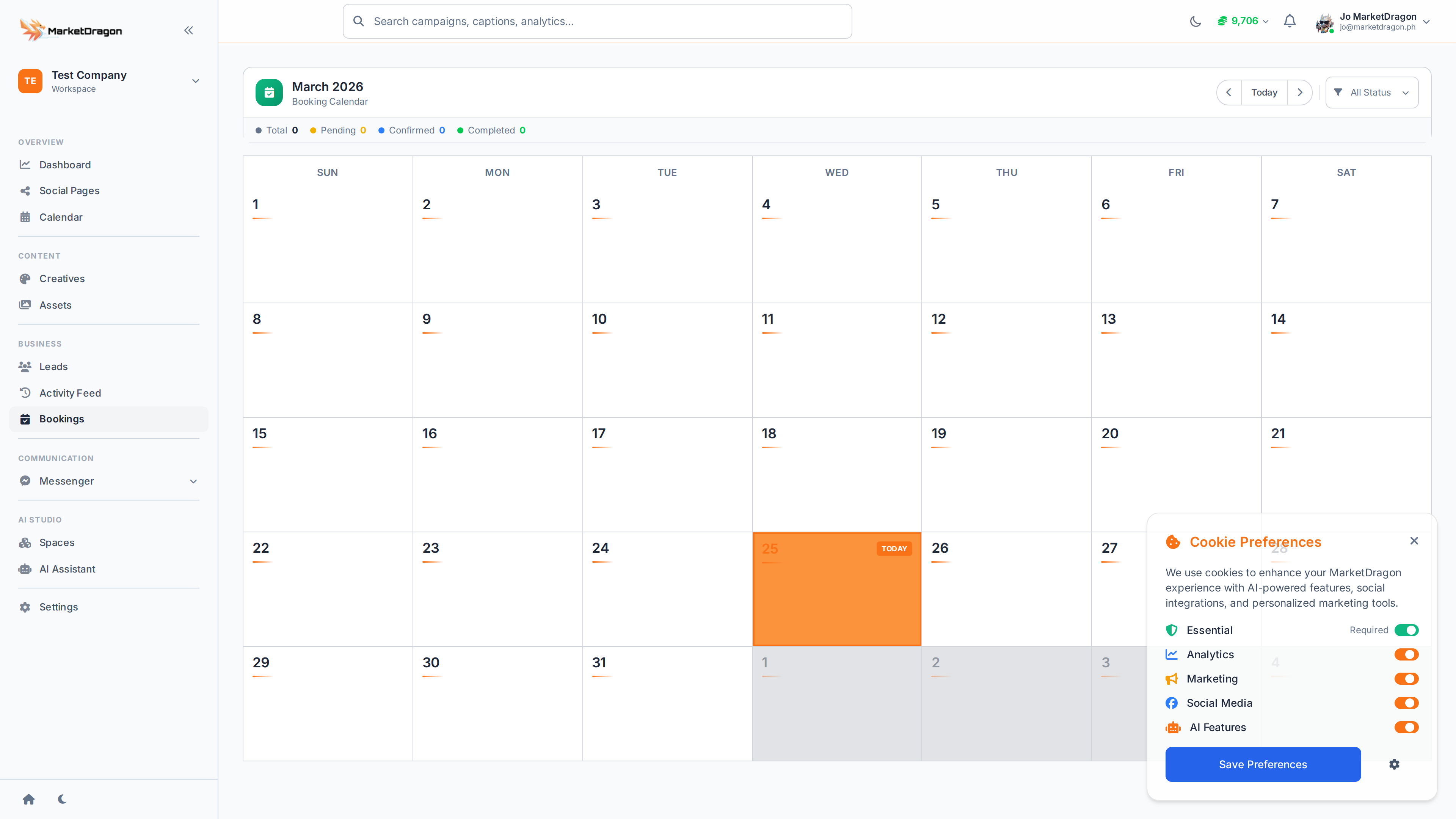
Accessing Bookings
Click Bookings in the sidebar to open the booking calendar view.
Calendar View
The booking calendar displays your appointments in a weekly or monthly layout:
- Each booking shows the customer name, time, and type
- Color coding indicates booking status (confirmed, pending, cancelled)
- Click any booking to view its full details
Viewing Booking Details
Click on an appointment to see:
- Customer name and contact information
- Date, time, and duration
- Booking status
- Any notes left by the customer
- Linked lead record (if available)
Managing Bookings
Confirming a Booking
Pending bookings need confirmation. Click the booking and select Confirm to lock it in.
Cancelling a Booking
Click the booking and select Cancel. The customer will be notified of the cancellation.
Rescheduling
Click the booking, update the date or time, and save. The customer is notified of the change.
Page-Level Bookings
Bookings can also come through specific social pages. When viewing a connected page, the Page Bookings section shows appointments tied to that page.
Lead Integration
Each booking is linked to a lead record. If the customer does not already exist in your CRM, a new lead is created automatically when they book.
Tip: Check your Bookings calendar each morning alongside the Dashboard to stay on top of the day's schedule.
Next Steps
Video tutorial coming soon
A video walkthrough for this tutorial is being produced. Switch to Read mode for the full written guide.
